Start your FastMU journey with the character-exclusive equipment kit, Pentagram Box, free class evolution, essential commands, keyboard shortcuts and the GameUtils server panel.
On the first login, your character receives a starter equipment kit designed to make early progression easier. The package also includes a Pentagram Box.
Starter Feature
Important Information
Starter Equipment
Each class receives its own equipment kit.
Pentagram Box
Included with the starter items for elemental progression.
Item Ownership
The starter items are exclusive to the character that received them.
Do not transfer starter items: Moving these character-exclusive items to another character or account causes them to become blocked. Blocked starter items must then be deleted through the available commands.
How to Open the Pentagram Box
Drag the Pentagram Box onto the ground → click the dropped items or press SPACE → collect them into your inventory
Drop the Pentagram Box on the ground to release its contents. Pick up each item by clicking it or by pressing SPACE.
Free Class Evolution with /evo
FastMU allows your character to evolve instantly through the free evolution command, including progression up to the fifth class.
Step
Action
1. Open Chat
Press ENTER.
2. Enter Command
Type /evo.
3. Evolve
Use the command as your character progresses, up to the fifth class for free.
NPCs, Shops and Essential Commands
Press TAB to open the mini-map and locate nearby NPCs. NPC shops can provide equipment and skills for your class.
Command or Key
Function
TAB
Opens the mini-map so you can locate NPCs.
/npc
Quickly opens an NPC shop from any region.
/openvault
Opens your vault from any region.
/evo
Instantly evolves the character class when progression allows it.
FastMU Keyboard Shortcuts
Character and Interface
Key
Window or Action
I / V
Open the character inventory.
I + S
Open the Personal Store window.
P
Open the Personal Store List.
K
Open the Gremory Case.
C
Open the character stat menu.
U
Open the Skill Tree.
A
Open the Master Skill Tree.
Ctrl + A
Open the Enhance Skill Tree.
D
Open the command list.
Systems and Features
Key
Window or Action
Z
Open MU Helper settings.
Home
Turn MU Helper on or off.
End
Open the Hunting Logs window.
M
Open the Warp window.
T
Open the Quest window.
Y
Open the Muun Inventory.
Ctrl + V
Open the Event Inventory.
L
Open the Hunt System window.
Social, Community and Shop
Key
Window or Action
F
Open the Friends List and Mailbox.
G
Open Guild information.
B
Open the Gens information window.
N
Open Party and Guild Matching.
X
Open the Cash Item Shop.
System and Settings
Key
Window or Action
O
Open the Options menu.
Esc
Open the System menu.
F1
Open the in-game guide.
F2
Open the Block Users window.
Ctrl + H
Open the Anti-Lag window.
Camera and Mini-map Controls
Camera Controls
Control
Action
F10
Toggle the 3D camera on or off.
F11
Reset the camera to its default position.
Mouse Wheel
Zoom the camera in or out.
Left Mouse Drag
Rotate the camera while the 3D camera is active.
Ctrl + F9
Hide or display the game interface.
Mini-map Controls
Control
Action
Tab
Open the mini-map.
[
Decrease mini-map opacity.
]
Increase mini-map opacity.
-
Reduce the mini-map size.
+
Increase the mini-map size.
How to Open the GameUtils Panel
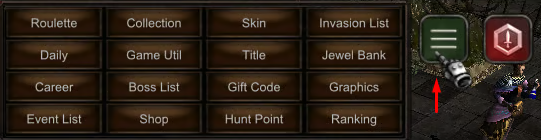
Use the GameUtils interface button shown below to open the server tools panel.
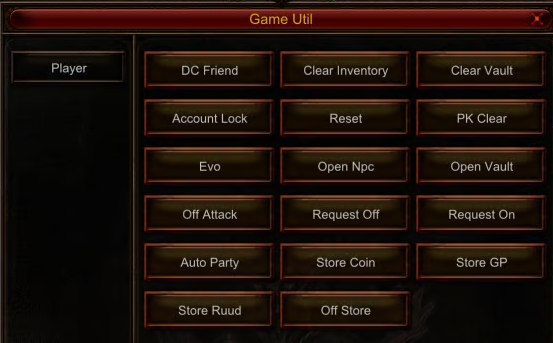
Select this interface button to access GameUtils.The GameUtils panel provides account, character, shop and utility tools.
GameUtils Tools and Functions
GameUtils Tool
Function
DCFriend
Disconnect a character using its character name and password.
Clear Inventory
Clear each inventory individually with one click. This action is irreversible.
Clear Vault
Clear the vault. This action is irreversible.
Account Lock
Add extra account protection when access is shared with another user.
Reset
Perform a character reset with one click.
PK Clear
Clear PK status by paying the required Zen fee.
Evo
Evolve the class with the same function as the /evo command.
Open NPC
Open an NPC shop anywhere, with the same function as /npc.
Openvault
Open the vault anywhere, with the same function as /openvault.
Off Attack
Activate the same function as /offlevel.
Request Off/On
Disable or enable incoming party requests.
Auto Party
Automatically accept party invitations.
Store Coin
Open the WCoinC currency store.
Store GP
Open the GoblinPoints currency store.
Store Ruud
Open the Ruud currency store.
Off Store
Keep the Personal Store open after the game client is closed.
Irreversible tools: Clear Inventory and Clear Vault permanently remove their contents. Check the selected inventory or vault carefully before confirming either action.
Account security: Account Lock provides additional protection, but sharing an account with another user is not recommended.
FastMU First Steps Quick Reference
Keep starter items on their original character → open the Pentagram Box and collect its contents → use /evo for free class evolution → locate NPCs with Tab or use /npc → access the vault with /openvault → learn the essential shortcuts → use GameUtils carefully.
We use cookies to improve your experience on our website. By browsing this website, you agree to our use of cookies. For more information, please read our
Cookie Policy
.